Showing posts with label IOS. Show all posts

Monday, 3 June 2013

AltKeyboard Will Turn You Into A More Efficient iPhone Typist [Jailbreak]


It takes practice to learn how to efficiently type on the iOS keyboard. Because all the keys are virtual, you have to tab through multiple layouts to access all of the available characters. I remember how slow I was at alternating keyboards to type numbers and punctation when I got my first iPhone. Over time, muscle memory kicks in and it becomes second nature.

What if there was a more productive way to type on iOS? A new jailbreak tweak called AltKeyboard is a fantastic enhancement every iPhone typist needs.

AltKeyboard
No layout switching required.
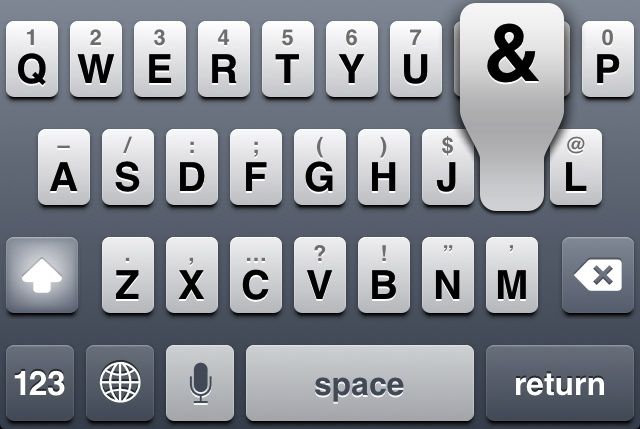
Alternate keys are available by quickly swiping up on a main key. You don’t have to switch layouts to access the numerical keys; the most used options are all available on the same layout.

There are two options that can be enabled in the tweak’s preferences. Tapping “Flick up” switches the gesture to a slide, which I found to be a little more tricky than the default. You can also tap “Alternate key” to enable the shift key layout. Instead of numbers and punctation, flicking up on a key products its capital version. Like the flick or slide gesture, choosing either layout is purely a matter of preference. I found that the default flick up and alternate key layout suited my needs perfectly.

AltKeyboard is designed by Sentry, a prolific jailbreak tweak and concept designer we’ve featured numerous times. Like his other work, this tweak is a great example of how subtle, focused changes can really improve the iOS experience.

AltKeyboard is available now in Cydia for $1. Get it.

You can follow us by "like" our Facebook page to keep yourself updated on all the latest from Microsoft, Google, Apple and the web.

Supercharge Your Apple TV With aTV Flash [Deals]


CoM - aTV


Want to give your Apple TV more power? Want to open a whole new world of capabilities? Then aTV Flash from FireCore is the solution!

This hugely popular software package gives you a ton of functionality that will make your Apple TV more powerful than you could imagine. And Cult of Mac Deals has it for only $19.99 for a limited time.

Note: This software requires you to jailbreak your Apple TV. If you are not comfortable with jailbreaking your devices, this promotion is not for you. Jailbreaking your Apple TV can cause complications, so please use at your own risk. For more on the jailbreaking process, click here. aTV Flash (black) is for jailbroken Apple TV Generation 2 only. Discover what model Apple TV you have by clicking here. You can find the software for 1st Generation Apple TV here.

Stream media directly from your Mac or PC with aTV Flash. Forget iTunes, access any song or music video to set the mood for your summer get together. This product lets you play a variety of popular file formats such as MKV, AVI, MP4, and many others.

Here are just some of the key features of aTV Flash:

  • Enables Apple TV to play additional video formats: MKV, AVI, MP4, WMV, and many others
  • Easily surf the web with HTML5 browser/Google Search
  • Get up to date weather forecasts directly through your Apple TV
  • Better metadata and cover art for media
  • Ability to create video playlists
  • Access to Last.fm radio stations
  • Transfer or play media from a Mac, PC, or NAS device

The Apple TV is one of the most under-appreciated pieces of technology around and, simply put, this software makes it even better. Another benefit is the ability to revert back to the standard Apple TV interface at any point in time, so you aren’t putting your hardware in jeopardy.
But the time to get this offer is short, so don’t delay. Get aTV Flash for just $19.99 from Cult of Mac Deals now and experience Apple TV like never before!
 
Supercharge Your Apple TV With aTV Flash [Deals]

You can follow us by "like" our Facebook page to keep yourself updated on all the latest from Microsoft, Google, Apple and the web.


Siri Knows You’re A Dirty Cheater At Video Games [Easter Egg]


siricheatcodes3

Siri knows everything (kind of). She even knows when you’re trying to use the Konami Code to cheat your way towards world domination.

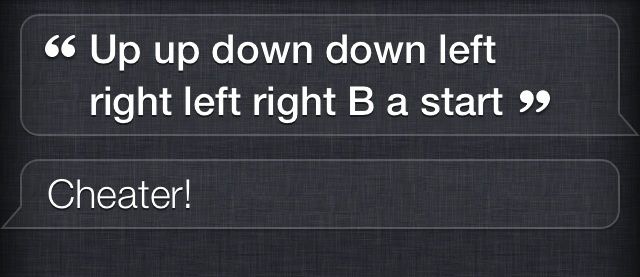
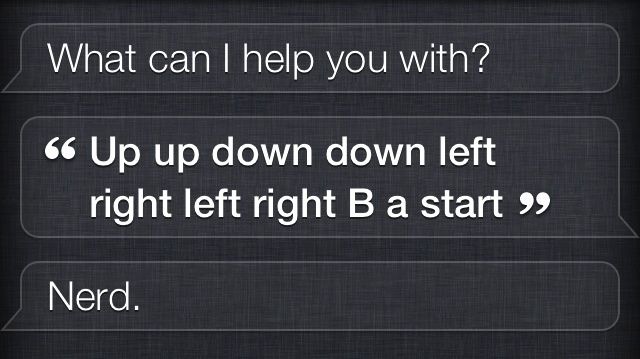
In a newly discovered Siri Easter egg, if you try to give Siri the Konami Code (up, up, down, down, left, right, left, right, B, A, start), she’ll chide you for your cheating ways.

Here are two other responses you can get in the Easter egg: 

siricheatcodes
siricheatcodes21

New Pebble Update Brings Notification Improvements, UI Tweaks & More


Pebble-Simplicity-face
The Pebble smartwatch has just received a new software update that makes a number of improvements to notifications, tweaks the device’s user interface, and fixes numerous bugs. It also adds a new watch face called Simplicity.
Here’s the complete list of changes with PebbleOS version 1.11:

What’s New

  • Improved Notification UI

  • Allows multiple notifications to be viewed if they arrive within a short time frame

  • Improved Set Time UI

  • Added the option of showing your current speed (as oppossed to your pace) in the RunKeeper application.

  • Swapped next and previous track buttons in the music application.

  • Added the Simplicity watchface.

  • Removed the Fuzzy Time watchface (it is available through the watchapp library).

Bug Fixes

  • Fixed a few issues where the bluetooth module would consume too much power.

  • Fixed an issue where rounded rects drawn with graphics_fill_rect did not handle being clipped properly.

  • Sped up text rendering when some of the text layer is clipped off the screen.

  • Fixed a bug where the vibrating motor would get stuck on.

  • Fixed a crash when changing windows, most commonly seen in the set time and set alarm UIs.

  • Fixed an issue where SMS messages on iOS would be incorrectly shown as an email with a very long subject line.

The Pebble is still in short supply at the moment, and it isn’t easy to get your hands on one. However, its creators are working hard to build as many as they possibly can. They’ve already shipped almost 70,000 units during the Pebble’s first year, and they expect to ship hundreds of thousands more in its second.

You can follow us by "like" our Facebook page to keep yourself updated on all the latest from Microsoft, Google, Apple and the web.


Thursday, 30 May 2013

Apple Releases New 16GB iPod touch With 4-inch Retina Display, No iSight Camera, Discontinues 4th-Generation Model

We are used to seeing Apple holding large press and media events, with the intention of generating the maximum interest possible for any new hardware launch. But it seems that the relatively silent launch of the new 16GB iPod touch has passed by without any fuss coming from Cupertino campus. The immediate release of a 16GB variant of the fifth-generation iPod touch may have taken a few by surprise, especially considering the timing is only a few weeks shy of Apple’s annual WWDC, but it serves as a replacement for the fourth-generation 16GB model that remained on sale when the larger 4-inch iPod touch 5G was announced last year.

As you might expect, the latest addition to the iPod touch lineup comes with a full 4-inch Retina display to compliment the existing 32 and 64GB models. Prospective purchasers of the smaller capacity fifth-generation model will benefit from the embedded dual-core A5 processor that ships with the media player as well as redesigned Apple EarPods that were heavily featured in the announcement keynote last year.

ipodtouch-16-gallery1-2013

The good news is that the new device is available immediately through the online Apple Store at a cost of $229. However, those cost-savings seem to come at a price with the trade-off being that the 4-inch personal media player will only be available with black and slate aesthetics. We’ve previously been used to only getting our iOS devices in either black or white, but last year’s introduction of multiple color choices for the iPod touch certainly proved to be popular amongst younger music lovers.

new iPod touch specs

Apple has also made a number of amendments to the technical specifications of the cheaper device. The forward facing camera has made it through the design process but it seems like the rear 1080p capable camera has been removed as part of the process of keeping costs at a minimum. It seems that this latest iOS device launch is aimed at the budget end of the market and could be specifically targeted at those who want to get their hands on their first iOS device without having to part with too much cash – cue the speculation about a budget iPhone!

new iPod touch

The latest model iPod touch is available to purchase now from Apple’s online store and should be hitting physical retail outlets in the coming days.

You can follow us by "like" our Facebook page to keep yourself updated on all the latest from Microsoft, Google, Apple and the web.

Tuesday, 28 May 2013

Here’s What A Waterproof iPhone 6 With Wireless Charging Could Look Like [Video]

iphone6concept

With WWDC less than a month away, we’ve seen a ton of designers come out with their visions for what iOS 7 might look like, but the next iPhone has been ignored.

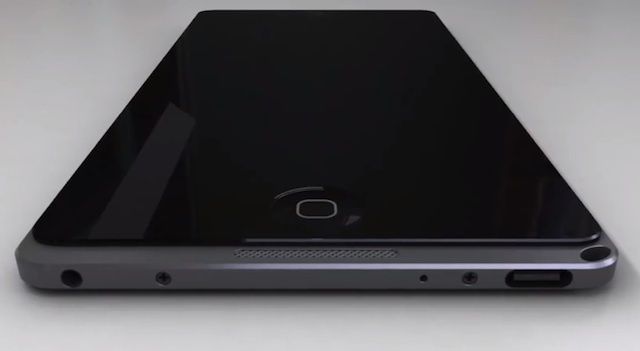
Concept designers Uygar Kaya and Ran Avni have a new video for the iPhone 6 that gives it a slimmer profile, waterproof coating, wireless charging, a notification LED, and more. It’s one of the sleekest iPhone 6 concepts we’ve seen yet, but would Apple actually add those features? Guess we’ll have to wait till 2014 to find out.

Check out the concept video below:


Jony Ive Has Apparently Made His Mark On Every Corner Of iOS: Panoramic Wallpapers, Toggles And More To Come

With the unveiling of iOS 7 just around the corner the rumor mill is starting to go crazy with proposed information on Apple’s next-generation mobile operating system that is being spearheaded by none other than Apple’s Senior Vice President of Industrial Design Jony Ive.
We have heard it time after time again that Ive is not a fan of Skeuomorphism unlike Steve Jobs and Scott Forstall. As such iOS 7 is without a doubt going to see a visual overhaul this time around.
9To5Mac has recently published an in-depth article highlighting just how Ive will change the look of certain areas of iOS. They have stated that iOS 7 focuses on the look and feel of the iOS device software rather than on several new features and we couldn’t agree more.
new-apps-ios7-concept
In the report on iOS 7 is summed up as “black, white, and flat all over,” which obviously refers to the dropping of heavy textures and the addition of several new black and white user interface elements.
9To5Mac did state that Apple has re-architected iOS 7′s new interface several times, so until the new software is announced at WWDC there is no guarantees that what their sources have told them will stick, but it is still an interesting read that highlights  just how Ive could visually change iOS. We are not going to go over every single detail, but rather highlight a few key areas.
If you were expecting iOS 7 to feature just a few overhauled areas then think again. It was stated that “Ive has not simply picked areas of the software design to tweak. He has essentially made his mark on every corner of the operating system,  all while mostly keeping the essence of what has made iOS so ubiquitous.”
Examples of how Ive plans to overhaul iOS can be found with the lockscreen:
iOS7-lock-screen-concept
With iOS 7, Apple will drop the shiny, transparent time bar on the top of the Lock screen in exchange for a shine-free, black interface. Additionally, the square-grid for entering a pin code has been replaced with round, black buttons with white text and white borders.
Or stock applications that currently are designed with textures:
music-ios7-concept-design
Many of the linen and leather textures found in iOS [have been replaced], such as in the iPad Calendar app, with flat white and black coloring. For instance, Apple’s Notification Center drop-down panel currently has a dark linen background. In iOS 7, according to people familiar with the software, this design becomes a dark grey/black color with white text.
Who could forget the iconic homescreen:
apps-ios7-concept
Most of the Apple-bundled app icons have been redesigned with flatter, less-skeuomorphic textures. Notable app icon changes for “flatness” are present for the Camera and Photos apps, while the Game Center logo loses the green felt and chess pieces. [Although] the Home screen app icons lose shine, shadows and gloss, the buttons are still round and just as tappable.
Apart from re-designing the look of iOS new features such as panoramic wallpapers were reported to be included, along with new widgets for the Notification Center (that include toggles) and of course the already rumored Vimeo and Flickr integration.
What do you think about the proposed changes in iOS 7? Share your thoughts in the comments section below.
Make sure you stay subscribed through our social media feeds, so that you never miss a beat, by liking us on Facebook

The Badger Cydia Tweak Touches Down On The BigBoss Repo: View Notifications Right From Your Homescreen [VIDEO]

Yet again, another anticipated tweak people been looking forward to was released today called Badger. It was developed by Aehmlo Lxaitn and Brett Schuster and is now available in Cydia’s BigBoss repo for $0.99.
Badger allows users to view notifications by using its default activation method by swiping up on an app icon displaying a badge kind of like Velox. Upon swiping up on an icon a nice pop-up menu will appear containing your unread messages and allows users to delete individual notifications from the interface by swiping to the left, or reveal the entire notification by tapping on it.
This will invoke a scrolling process which is a little slow and users will notice when deleting a specific notification from the Badger window they wont be deleted from the app, nor will the number decrease from the applications badge. There are other activation methods like Tap an App Badge which will be discussed later.
Badger cydia tweak ijailbreak
If you experience an application with a badge or unread notification and invoking the Badger window doesn’t work go to Settings/ Notifications/ tap on the application you want and make sure the Badge App Icon toggle is switched to on.
Badger cydia tweak
Badger comes with plenty of nice options to customize the tweak. Users have a killswitch, five different animated styles for entering and exiting the Badger pop up interface and in addition there is a contacts picture toggle for interacting with apps that might have pictures displayed.
Badger cydia tweak settings
There are other advanced options such as changing the default activation method from swiping up on an icon to Swiping Down Icon, Double Tap Icon and Tap App Badge. The Double Tapp Icon method takes longer to launch an app and the Tap an App Badge might require a little practice because you need to tap the right spot. Multiple Activation Dismiss allows you to use the same activation method used to activate Badger to dismiss Badger, and Switch Action Page changes the swipe direction of Badger’s action page. Finally, disable for apps allows you to disable Badger for specific apps.
I think it’s a pretty cool idea to interact with your app’s notifications and hopefully we will see some improvement in new versions. It seems like the developers are devoted to the tweak and the user experience. Lets us know what you think of the Badger tweak below in the comment section.
Make sure you stay subscribed through our social media feeds, so that you never miss a beat, by liking us on Facebook

The Background Manager Cydia Tweak Brings True Backgrounding To iOS

Although iOS does have multi-tasking thanks to the introduction of the App Switcher it does not truly background applications, rather it suspends them in memory. This does make them more accessible, but it requires the applications essentially re-load themselves when you launch them again.
Apple did this because if enabled true multitasking then the battery life of your iPhone, iPod Touch or iPad would surely suffer, but sometimes it would be nice if true multitasking was an option for certain applications. If you were thinking the same then you will be glad to know a Cydia tweak to enable true backgrounding has been released calledBackground Manager.
The Background Manager Cydia tweak has been built from the ground up for iOS 6 and should not be confused with the Backgrounder Cydia tweak that was available on previous firmware generations. Background Manager was coded from scratch and does not use source code from Backgrounder.
Background-Manager-Cydia-Tweak-ijailbreak
When you install Background Manager from Cydia you will have to configure it. This can be done from the Settings app. Inside the preferences tab for Background Manager you will find two panels: Global and Each App. In the Global panel you will be able to set rules for how backgrounding works for all applications on your device and in the Each App tab you can configure rules on an app-to-app basis.
The nice thing about Background Manager is when you configure rules on an app-to-app basis there is additional settings that are quite useful such as the ability to make an application launch as soon as you boot your device.
Background-Manager-Cydia-Tweak-ios-ijailbreak
As mentioned previously there is some concerns with battery life with Background Manager as it means applications are always running as if you were viewing them at that moment, but if you only use it for certain applications it shouldn’t be much of a problem.
If you are interested in Background Manager you can find it on the BigBoss repo for $0.99. Let us know what you think of the tweak in the comments section below.
Make sure you stay subscribed through our social media feeds, so that you never miss a beat, by liking us on Facebook

Set Activator Actions When Double Tapping Applications On Your Homescreen With App Activate

App Activate is a new tweak that was released into Cydia recently and what it does is allow you to assign Activator actions by double tapping an app’s icon. This is more useful than you might think and it opens up to some really cool possibilities.
For example, with App Activate you could set it so that when you double tap the Music app it starts playing or when you double tap the Mail app you could compose an email.
Getting the picture yet?
If you have Ask Assistant installed you could even make it so when you double tap the Maps icon it would automatically ask Siri to take you home, or make it so when you double tap the Weather app Siri would tell you the current weather forecast.
App-Activate-Cydia-Tweak-ijailbreak
Configuring App Activate is extremely easy and involves you going into the App Activate tab in the Settings app and selecting the applications you want to apply double tap gestures to. Then once you select the applications you go into Activator and assign an activator action to those applications.
I have tested App Activate and it works very well! It certainly adds some useful functionality and considering it is available for free in the BigBoss repo, there is nothing stopping you from trying it out.
Let us know what you think of the tweak in the comments section below.
Make sure you stay subscribed through our social media feeds, so that you never miss a beat, by liking us on Facebook